
⚡ Quick Answer
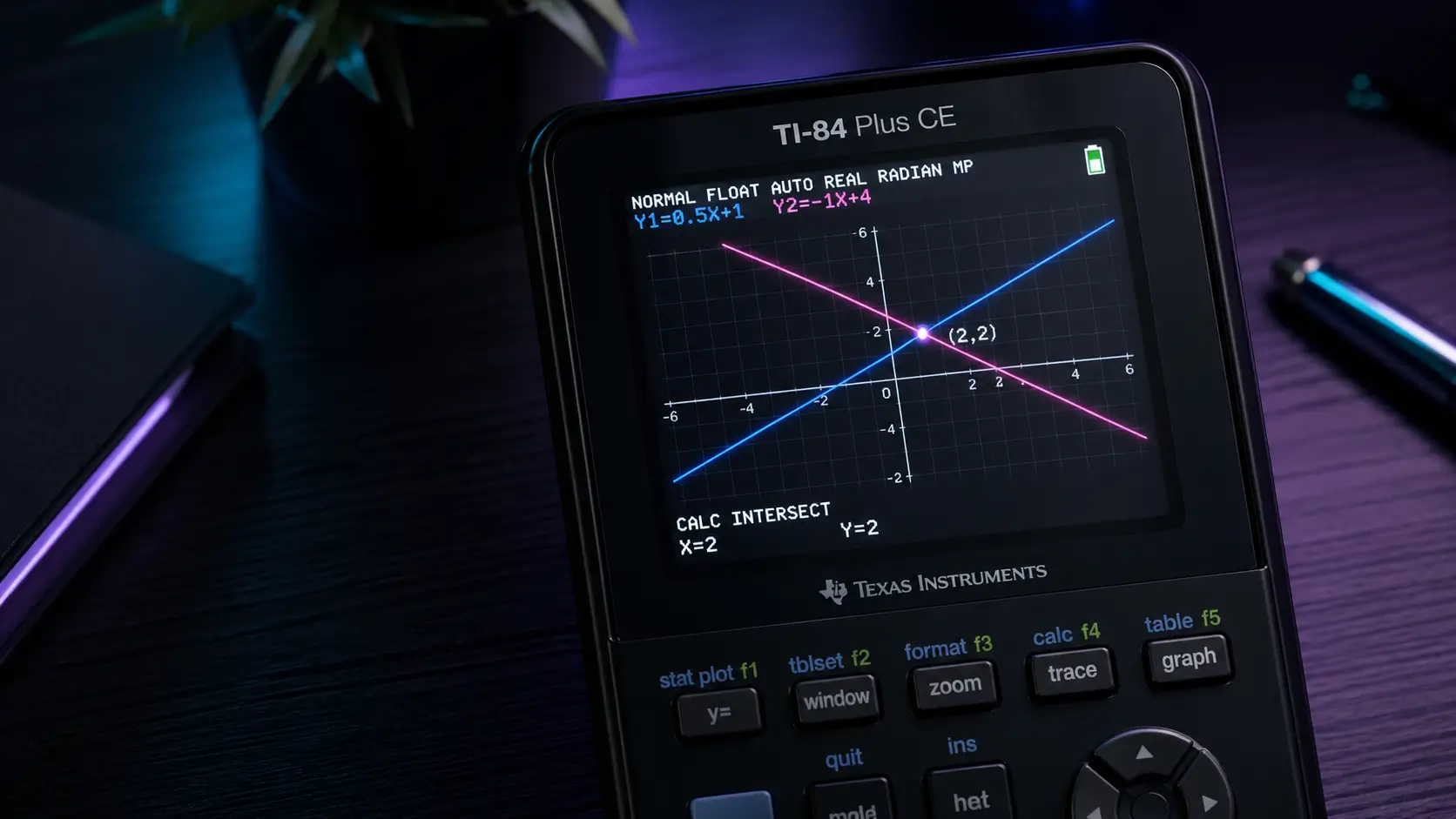
If you are stuck on a homework problem that asks you to "solve the system of equations," don't panic. Press [Y=] and enter your two equations in Y1 and Y2. Press [GRAPH]. Then press [2nd] + [TRACE] to open the CALC menu and choose 5: intersect. Press [ENTER] three times when the calculator asks First curve?, Second curve?, and Guess?. The calculator will show the exact intersection point at the bottom.
🖩 Practice This Right Now
No physical TI-84? Use our free browser-based TI-84 Plus CE emulator. Graph any function and practice the intersection feature — it works exactly like the real thing.
Launch Free TI-84 Calculator →Step 1: Enter Your Two Equations
Before the calculator can find where the lines cross, you need to tell it what the lines are.
-
1
Press the Y= button at the top left corner of your calculator.
-
2
Type your first equation into the Y1= slot. (Use the X,T,θ,n button to type the letter X).
-
3
Type your second equation into the Y2= slot.

Step 2: Look at the Graph
Before you ask the calculator to find the intersection, you need to make sure the lines actually cross on the screen.
Press the GRAPH button at the top right of the keypad and watch the calculator draw both lines. If you can clearly see the point where the two lines cross, great! Move on to Step 3.
What if I can't see the intersection? If the lines cross off the screen, the calculator won't be able to find it. Press the ZOOM button and select 3: Zoom Out, or press WINDOW and make your Xmax and Ymax numbers bigger until the intersection point shows up on the screen. For more help with window settings, check out our complete guide on how to graph on a TI-84.
Step 3: Open the Calculate Menu
Now it's time to let the calculator do the heavy lifting.
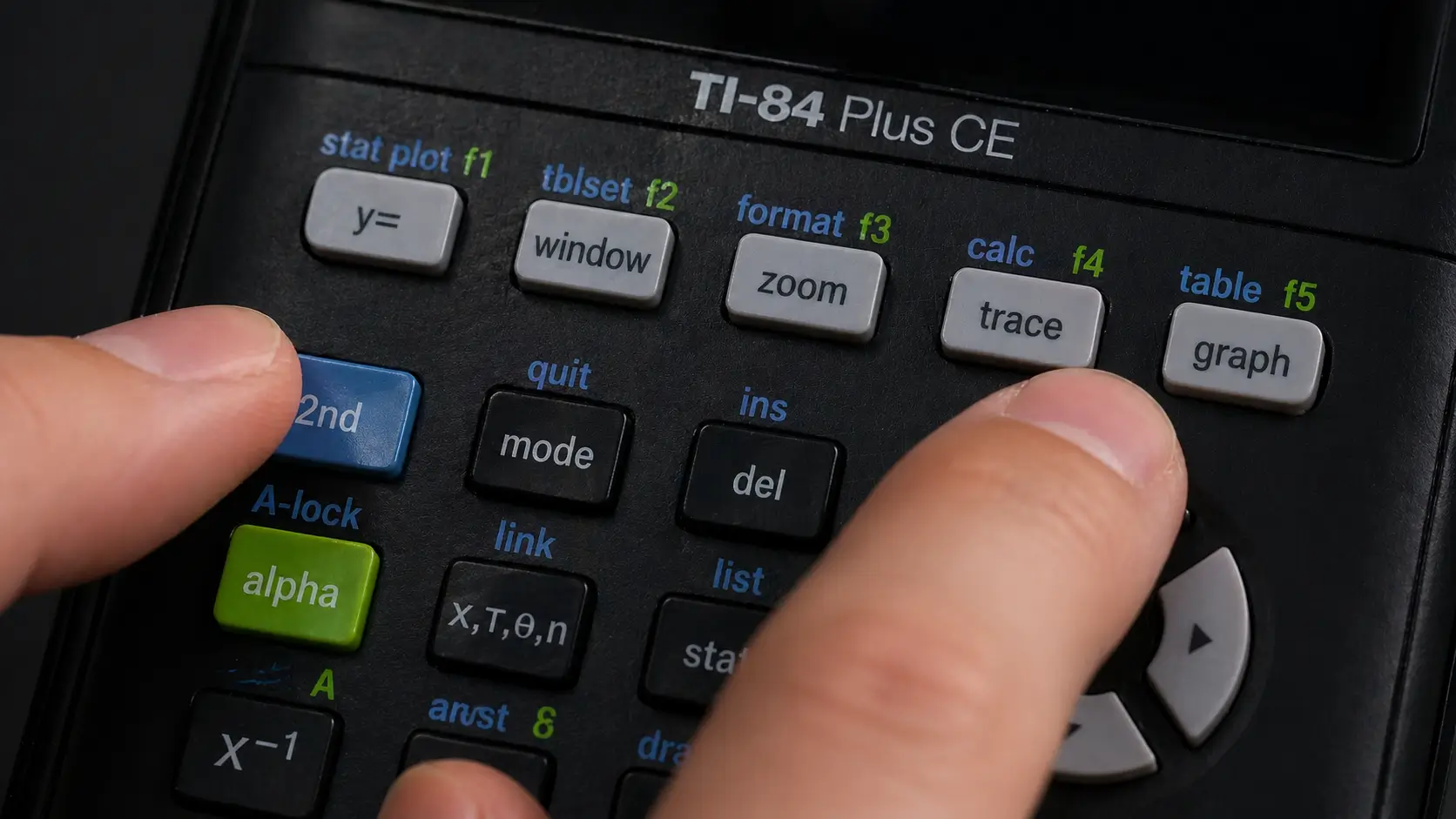
Press the blue 2nd button, then press the TRACE button (this activates the calc menu printed in blue above the button).
Step 4: Select the Intersect Tool
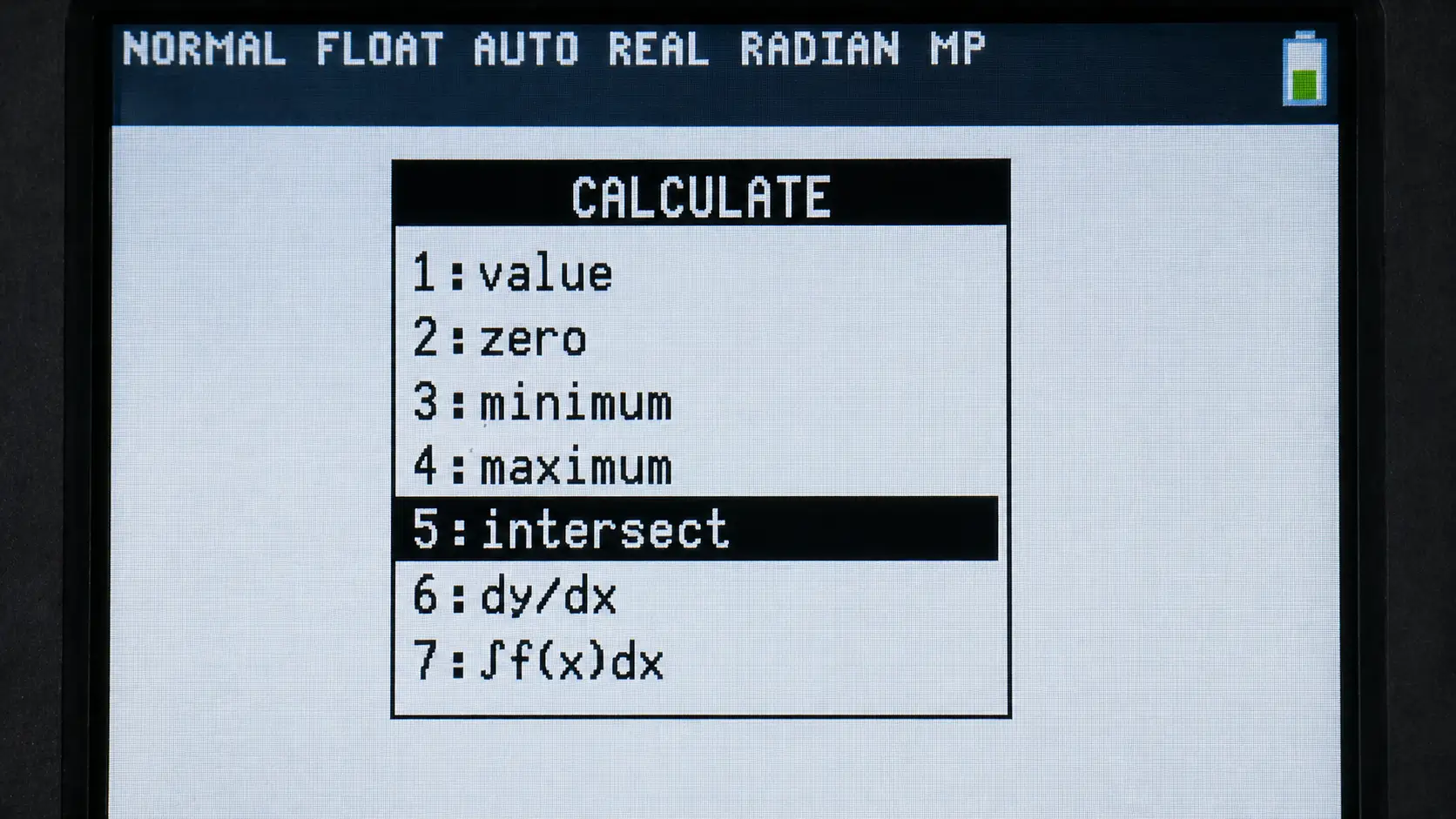
A menu will pop up on your screen with a list of math tools. Look down the list and press the number 5 on your keypad to select intersect. You can also use the down arrow to highlight it and press ENTER.
Step 5: Answer the Three Questions
Your calculator will bring you back to the graph, but now it has a blinking cursor on one of the lines. It is going to ask you three quick questions at the bottom of the screen.
- First curve? The calculator is just asking to confirm the first line. Just press ENTER.
- Second curve? The cursor will jump to the other line. Press ENTER again.
- Guess? Use the left and right arrow keys to move the blinking cursor as close to the intersection point as possible. It doesn't have to be perfect. Once you are close, press ENTER one last time.
The Result
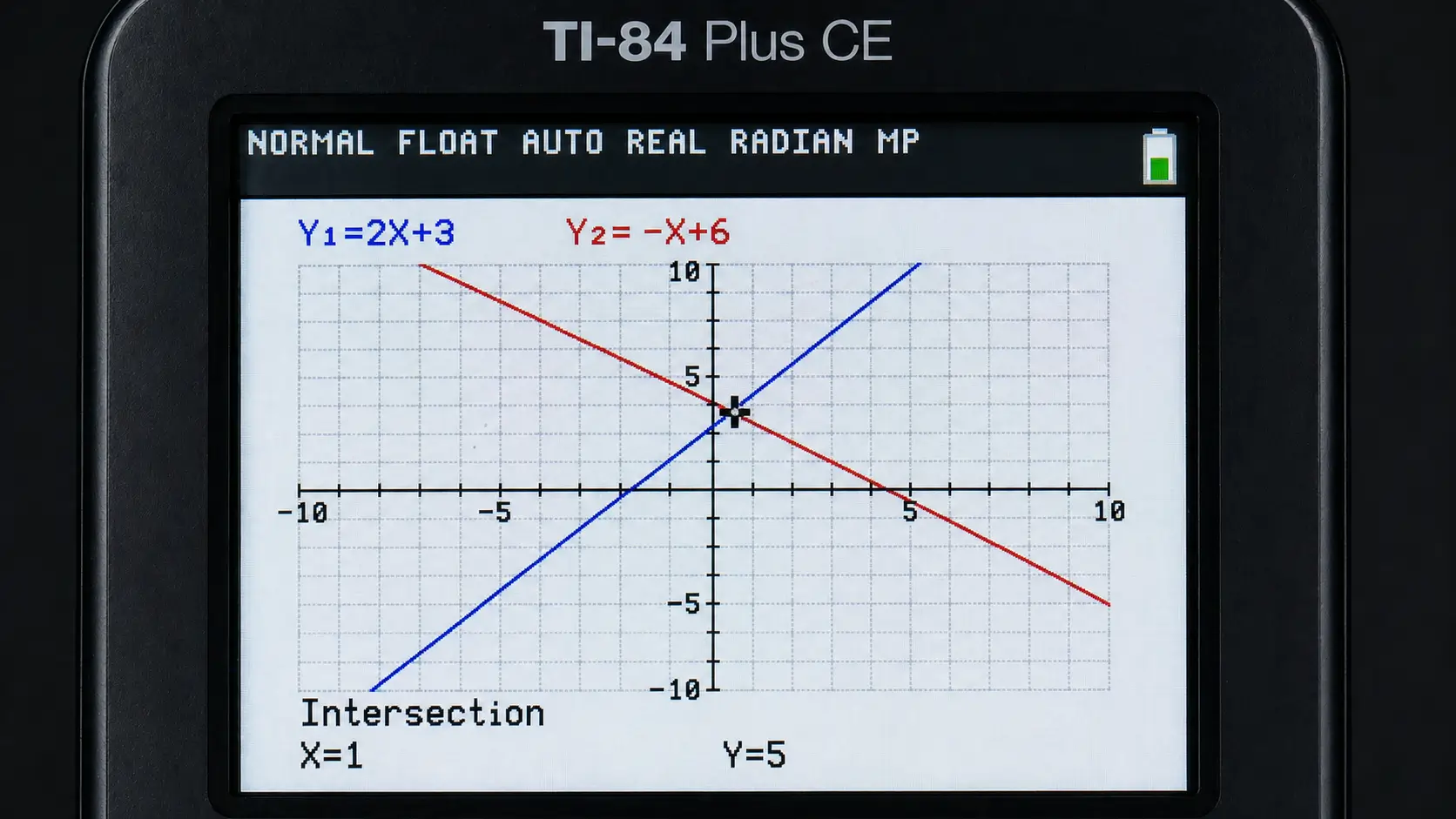
That's it! The calculator will stop thinking, and the word Intersection will appear at the bottom of the screen. Right below it, you will see the exact X and Y coordinates where the two lines cross.
This is the solution to your system of equations!
Troubleshooting Common Errors
Sometimes things don't go perfectly. If you got an error screen, here is how to fix it.
Error: NO SIGN CHNG
This usually happens if the two lines never cross at all (they are parallel), or if the intersection point is way off the screen. Make sure you typed the equations correctly. If they are correct, zoom out until you can see the lines cross.
Error: INVALID DIMENSION
This means one of your Stat Plots is turned on and confusing the calculator. Press 2nd and then Y= to open the stat plot menu. Select option 4: PlotsOff and press Enter. Now try graphing again! If your calculator keeps giving strange errors, you might need to reset your TI-84's RAM to clear out bad settings.
Frequently Asked Questions
No, the intersect tool can only compare two lines at a time. If you have three lines, you have to find the intersection of the first two, and then run the tool again for the next two. If you need to find where a single line crosses the x-axis, you should use the calc menu to find the zeros of the function instead.
Yes! The TI-84 calls them "curves" for a reason. You can use this exact same method to find where a straight line crosses a U-shaped parabola, or where two parabolas cross each other. If they cross in two different places, just move your cursor closer to the second intersection when the calculator asks for your "Guess".
The graph screen will always give you the answer as a decimal. If you need the answer as a fraction, go back to the home screen by pressing [2nd] then [MODE] (to Quit). Type X, press [MATH], select 1: >Frac, and press Enter.