⚡ Quick Answer
To find the maximum or minimum of a graph, press [Y=] and enter your equation. Press [GRAPH]. Then press [2nd] + [TRACE] to open the CALC menu. Choose 3: minimum (for a valley) or 4: maximum (for a peak). Move the cursor to the left of the peak and press [ENTER] for Left Bound. Move it to the right and press [ENTER] for Right Bound. Press [ENTER] one last time for Guess, and the exact coordinates will appear!
Step 1: Graph Your Equation
Before finding the highest or lowest point, we need to actually see the graph on the screen.
-
1
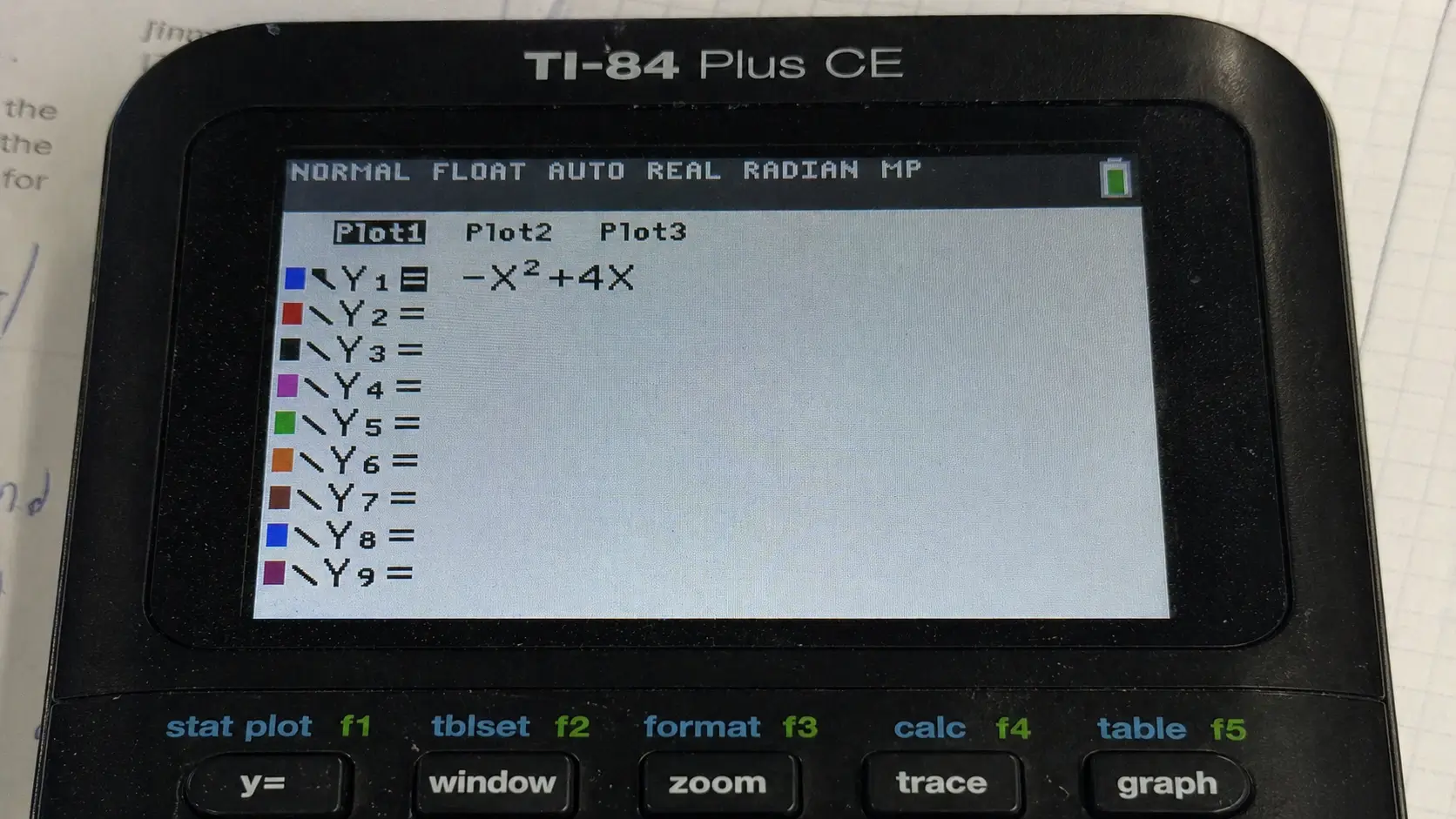
Press the Y= button at the top left corner of your calculator.
-
2
Type your function into the Y1= slot.
-
3
Press the GRAPH button.
Can't see the peak or valley? If the top or bottom of your graph is cut off, the calculator cannot find it. Press ZOOM and choose 3: Zoom Out or manually adjust your WINDOW until the peak is visible. Need help? Read our complete guide on graphing.
Step 2: Open the Calculate Menu
Now that you can clearly see the curve on your screen, we need to open the calculator's built-in math tools.
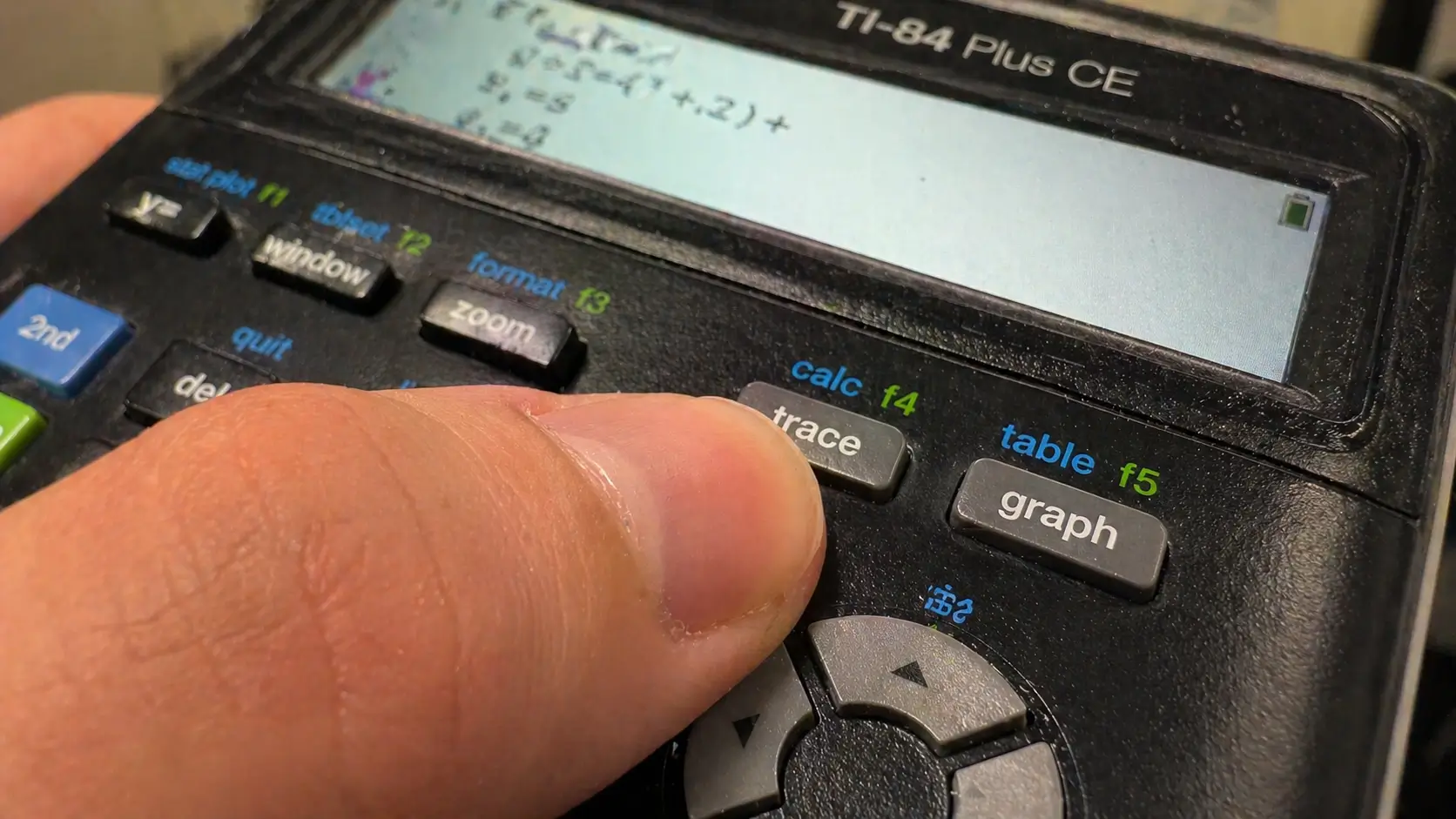
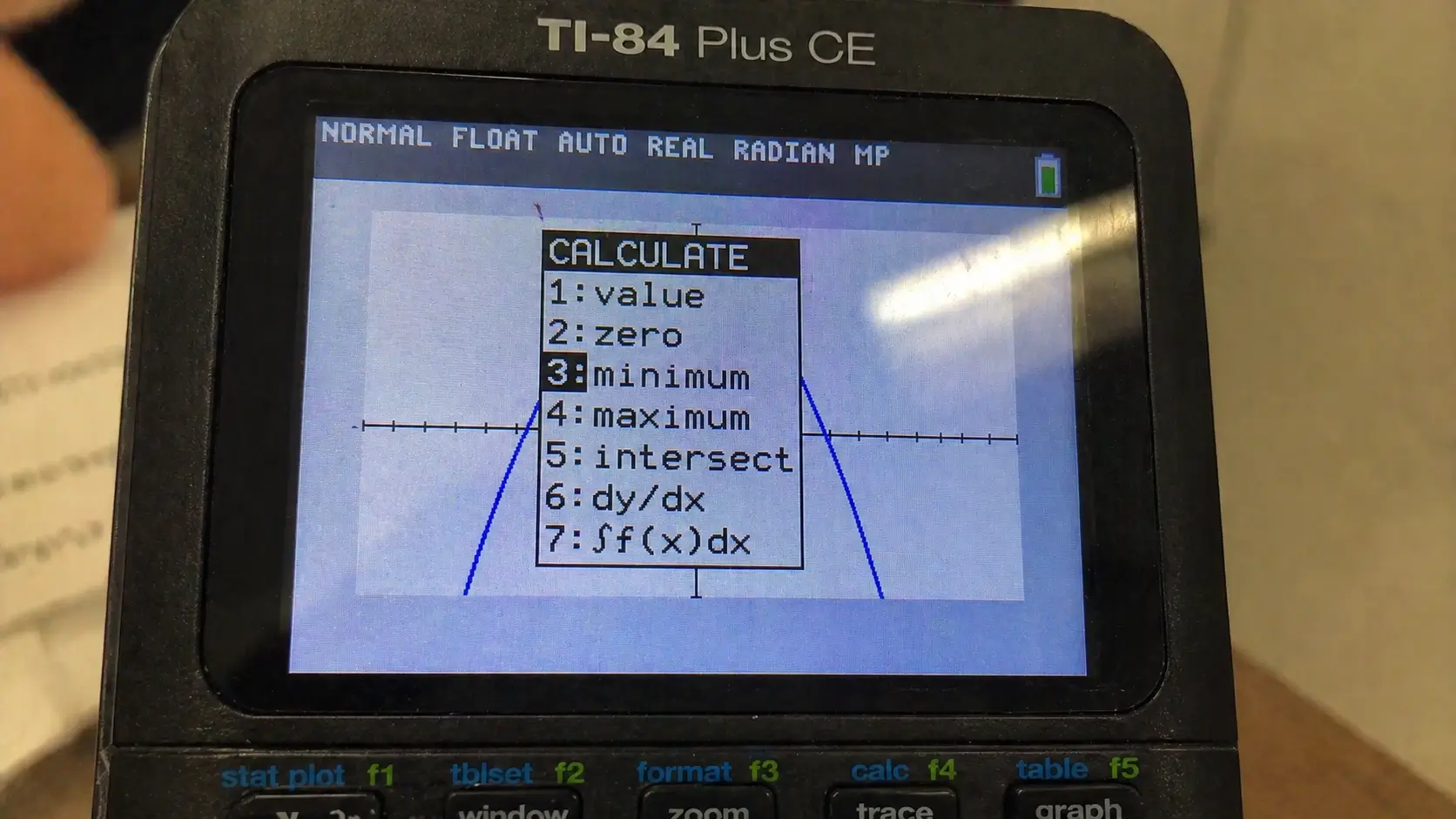
Press the blue 2nd button, and then press the TRACE button. This will open the CALCULATE menu, which is printed in blue ink right above the TRACE button.
Step 3: Select Maximum or Minimum
A menu will pop up with a list of tools. Depending on what your graph looks like, you will choose one of two options:
- To find the highest point (a peak or mountain): Press 4 on your keypad to select 4: maximum.
- To find the lowest point (a valley or U-shape): Press 3 on your keypad to select 3: minimum.
Step 4: Set Left and Right Bounds
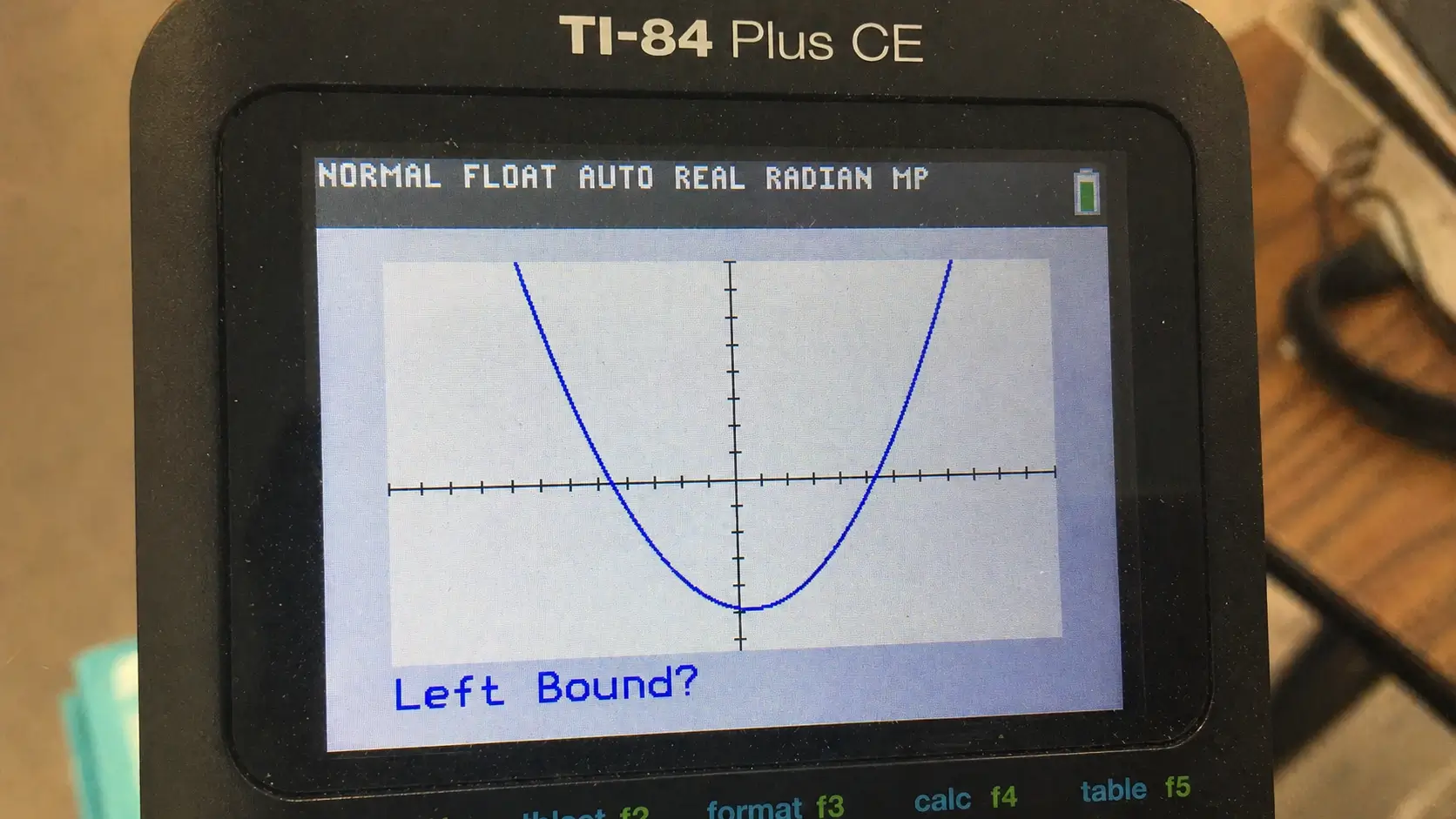
Your calculator will return to the graph screen, but now it has a blinking cursor on the line. It will ask you three questions at the bottom left corner.
Left Bound?
Use the left arrow key to move the blinking cursor so it sits just to the left side of the peak (or valley). Press ENTER. A tiny triangle will appear at the top of the screen to mark this spot.
Right Bound?
Now use the right arrow key to move the cursor completely over the peak, so it sits just to the right side of it. Press ENTER. A second triangle will appear, creating a "window" around the peak.
Guess?
Move the cursor directly onto what looks like the exact peak or valley. It doesn't have to be perfect—just get close. Press ENTER one last time.
The Final Result
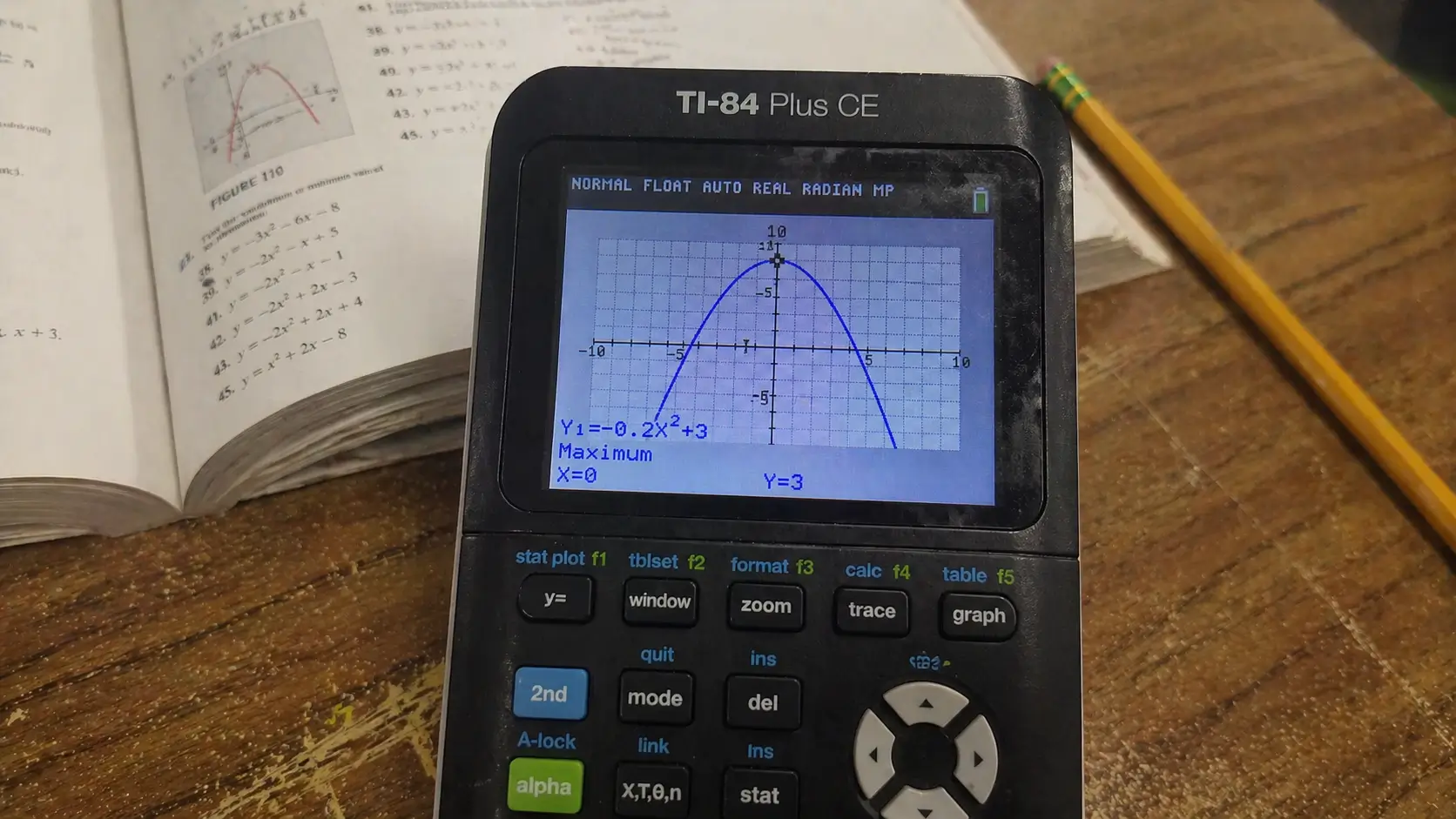
After you press enter on your guess, the calculator will lock onto the absolute highest or lowest point between your two bounds. The word Maximum (or Minimum) will appear at the bottom of the screen.
Right underneath it, you will see the exact X and Y coordinates of your vertex.
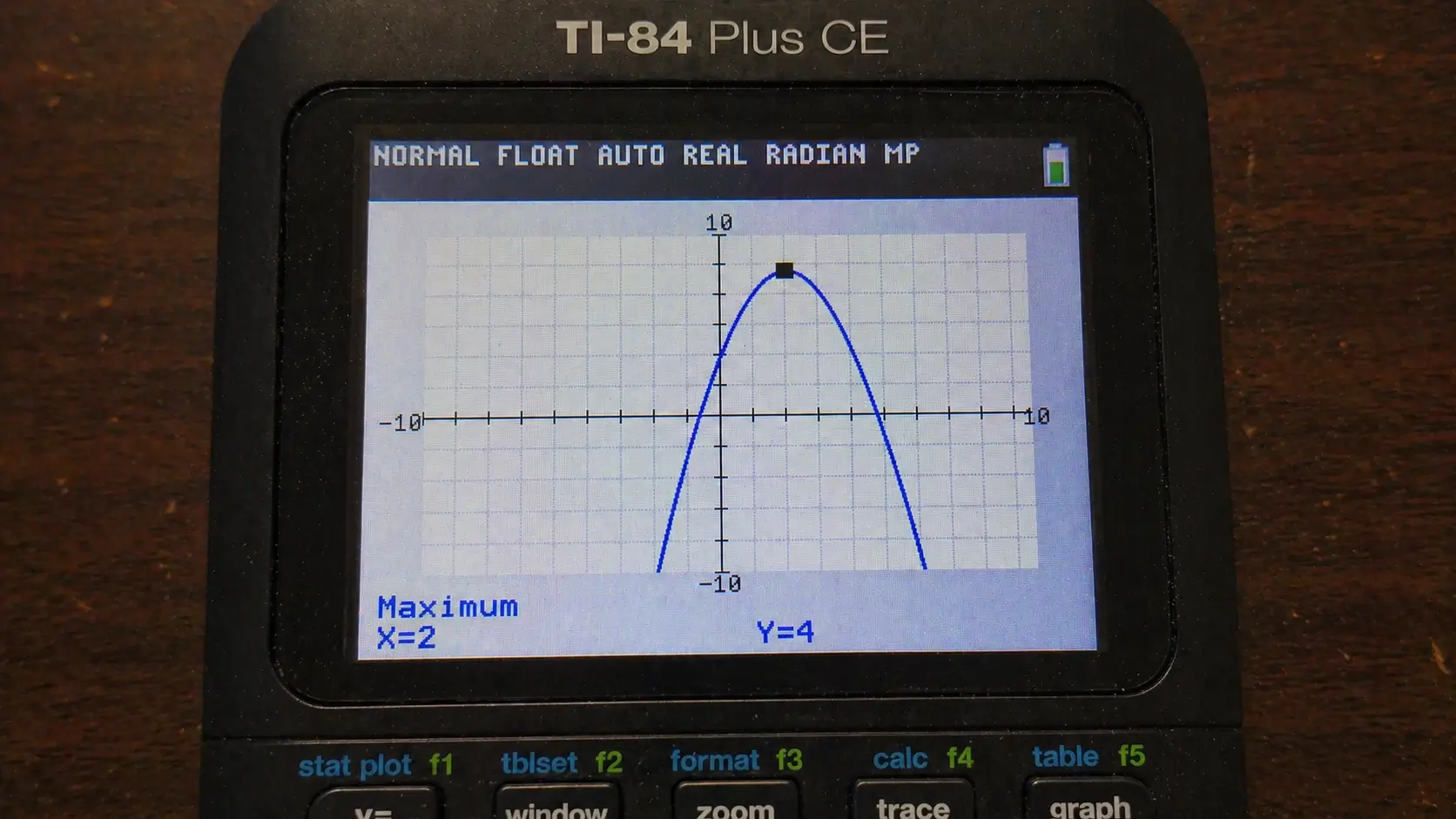
Rounding Issues: If your calculator gives you an X-value like 1.9999998, the real mathematical answer is almost always exactly 2. The calculator uses numerical approximation, which sometimes creates these tiny rounding errors.
🖩 Practice This Right Now
Don't have your physical TI-84 handy? Use our free browser-based TI-84 Plus CE emulator. Graph any quadratic function and practice the max/min tool right now!
Launch Free TI-84 Calculator →Troubleshooting Common Errors
Error: ERR: BOUND
This happens when you mix up your left and right bounds. Your Left Bound must be further left on the screen than your Right Bound. If you set your left bound on the right side of the peak, the calculator gets confused. Clear the error and try again, making sure to start on the left side.
Error: ERR: NO SIGN CHNG
If you see this error, you might have accidentally chosen the zero finder tool instead of maximum/minimum. Go back to the CALC menu and make sure you select option 3 or 4.
Frequently Asked Questions
Left Bound tells the calculator where to start looking (to the left of the peak). Right Bound tells it where to stop looking (to the right of the peak). Guess tells it exactly where you think the peak is to speed up the calculation.
Yes! The vertex of an upward-facing parabola is a Minimum, and the vertex of a downward-facing parabola is a Maximum. The TI-84 max/min tools will give you the exact coordinates of the vertex.
Because of how the TI-84 calculates pixels internally, it sometimes stops a tiny fraction off from the exact integer. If you get 1.9999998, the true mathematical answer is exactly 2. Always round these 'almost perfect' numbers.